
How to Check GPA on PowerSchool
To check GPA on PowerSchool, start with Grades, then look for Transcript, Grade History, or Reports if your school shows those tabs. If you do not see GPA, it probably means your district has hidden it, your account role does not show it, or your school only publishes GPA on transcripts/report cards.
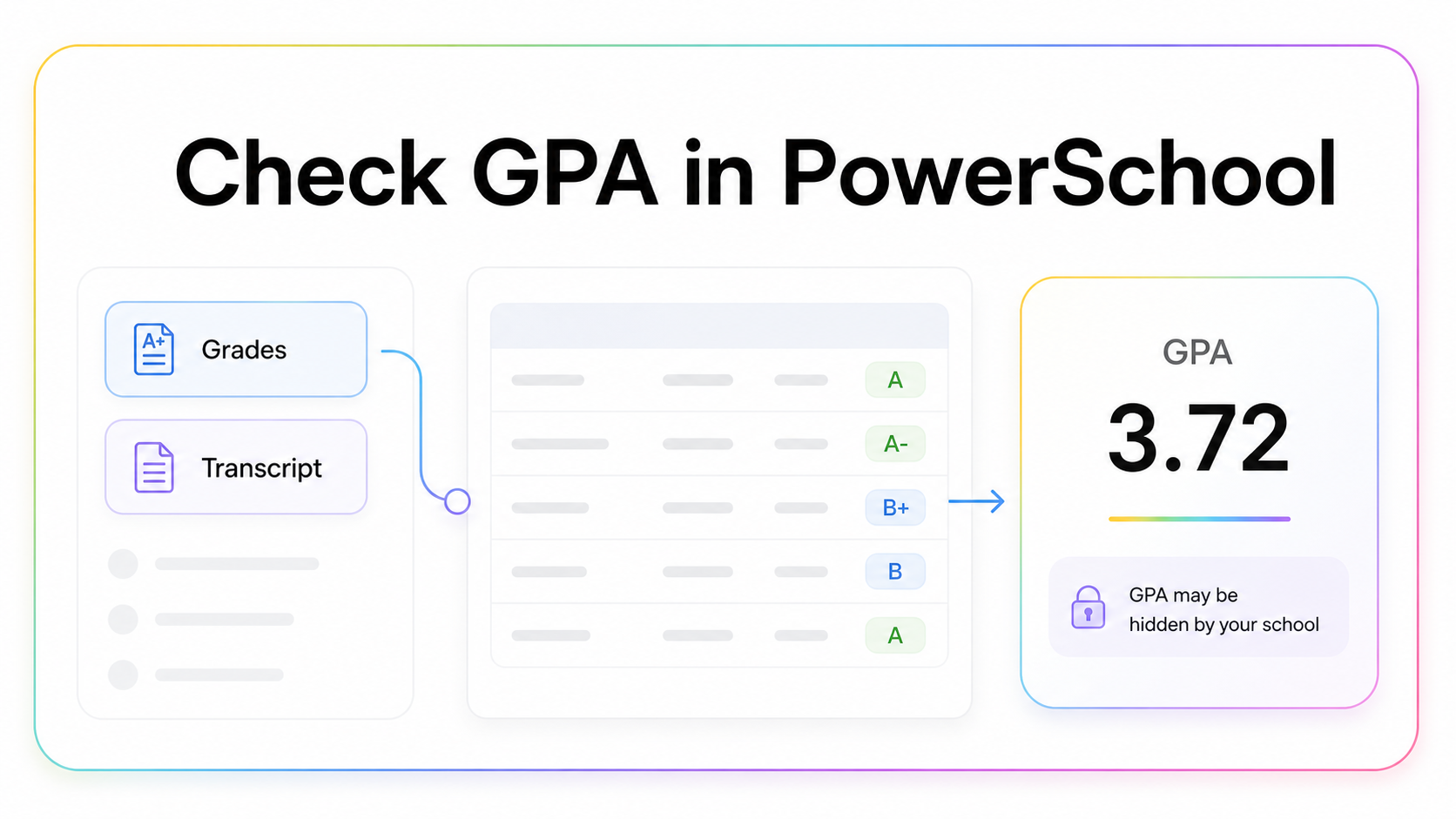
Quick answer
Open PowerSchool, sign in to your student or parent account, and check the sections your school makes available. The most common places to look are Grades, Transcript, Grade History, and Reports. Some schools show cumulative GPA near the transcript area. Others show only current course grades and leave GPA off the portal completely.
This is the part students do not love hearing: PowerSchool is not one identical app for every school. Districts control what students and parents can see. Your friend's portal may show GPA clearly while yours does not, even if both schools use PowerSchool.
If GPA is missing, do not assume your account is broken. It may simply be hidden by school settings. You can still estimate your GPA from course grades and credits, but your official GPA should come from the transcript, counselor, registrar, or school office.
Where to look first
Start with the left or top navigation inside PowerSchool. Look for anything named Grades, Grade History, Transcript, Academic History, or Reports. Your school may use slightly different labels, especially on mobile.
| PowerSchool area | What you may find | If GPA is missing |
|---|---|---|
| Grades | Current course grades | Use grades to estimate GPA |
| Grade History | Past final grades by term | Look for term GPA or cumulative GPA |
| Transcript | Official course history | Best place if your school enables it |
| Reports | Report cards or documents | Open PDF/report card if available |
Step-by-step: checking GPA
First, log in to the correct PowerSchool portal for your district. If your school has separate student and parent links, use the one assigned to you. Then open the Grades area and scan for a GPA label near current grades, term grades, or academic summary.
If you do not see GPA there, open Grade History or Transcript if available. This is often where cumulative GPA appears because GPA is usually tied to completed grades, not day-to-day assignment scores. If your school publishes report cards as PDFs, open the latest report card and look near the grade summary.
If you still do not see it, your school may not display GPA in PowerSchool. That is common. Schools sometimes hide GPA until grades are finalized, show it only to counselors, or publish it only on official transcripts.
Why PowerSchool may not show your GPA
The most common reason is school settings. District administrators choose which screens and reports students can access. GPA can also disappear if the school does not calculate GPA for your grade level yet, if the term is not finalized, if you are looking at in-progress grades, or if you are using a mobile view that hides reports.
Another possibility is that your school reports weighted and unweighted GPA separately, but only one appears in the portal. Some schools do not show rank, GPA, or transcript details until a counselor releases them.
How to estimate GPA if it is hidden
If PowerSchool shows your course grades and credits, you can estimate GPA manually. Convert each final letter grade to grade points, multiply by credits, add quality points, and divide by total credits.
GPA = total quality points / total credits
Use your school's scale when possible. Many schools use A = 4.0, B = 3.0, C = 2.0, D = 1.0, F = 0.0 for unweighted GPA, but plus-minus grading and weighting rules can change the result. If your school weights Honors, AP, IB, or dual-enrollment classes, use the weighted rule your district publishes.
Current grades vs official GPA
PowerSchool often shows current grades before the term is over. Those grades can change daily as teachers enter assignments. Official GPA usually uses final grades after the grading period closes. That means the GPA you estimate mid-semester is a planning number, not the final transcript number.
If you are trying to qualify for athletics, scholarships, graduation, honors, or college applications, ask for the official GPA. The estimate helps you plan; the official transcript controls the decision.
What to do if you only see percentages
Some PowerSchool setups show percentages instead of final letters. In that case, do not convert every percentage using a random internet chart. Your school may use its own grade bands. For example, one district may treat 90-100 as an A, while another may use plus-minus bands such as 93-96 for A and 90-92 for A-. That difference changes GPA.
The safest move is to find your school's grading scale, then convert each percentage to the correct letter or grade-point value. If the term is still in progress, remember that a percentage today may not be the final grade printed on the transcript. Use it as a planning estimate, not a locked number.
Checklist before you trust the number
Before using a GPA from PowerSchool for anything important, check three things. First, is it term GPA or cumulative GPA? Second, is it weighted or unweighted? Third, is it based on finalized grades or current live grades? A 3.6 weighted term GPA and a 3.6 unweighted cumulative GPA are very different signals.
If you cannot answer those three questions from the screen, ask your counselor. That is not overthinking it; it is how you avoid sending the wrong number to a college, coach, scholarship form, or parent who is already breathing dramatically in the doorway.
Bottom line
Check PowerSchool under Grades, Grade History, Transcript, or Reports. If GPA is not visible, your school probably has not enabled it for your account. Use the visible grades to estimate your GPA, but confirm the official number with your counselor or transcript.

Written by ShaheryarFounder, KnowMyGPA. I build these guides for students who need a clear answer, a correct calculator, and a real next step without digging through policy pages.
Estimate the GPA PowerSchool does not show
If your portal shows grades but not GPA, enter your courses and credits to estimate it safely.
Use the GPA Calculator